Import existing containers
Bring containers started with docker run or docker compose into a project. Each becomes an ordinary service of the panel (deploy, rollback, environment, domains, backups, logs, terminal, members). The panel recreates them: it reads them, shows a plan, stops the originals, copies their data and deploys its own services. The originals are kept until you finish, so the whole import can be undone.
Only administrators (system.manage, with projects.create and services.create) import.
1. Choose what to bring
Open the import from any of these:
- Import containers on the Dashboard or on a project;
- Docker → Containers, a row's ⋯ menu, Bring into the panel.
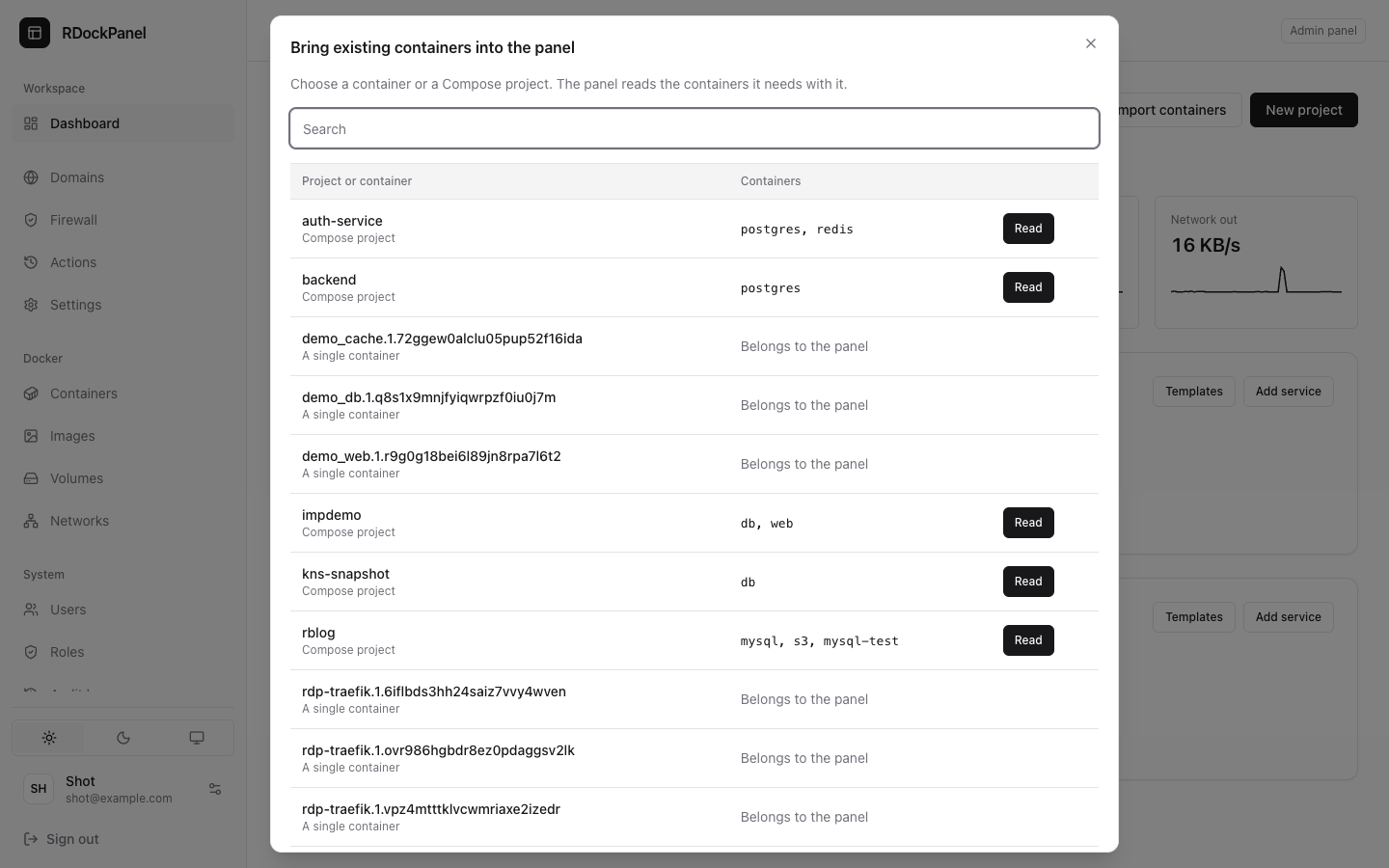
The dialog lists the server's containers by Compose project (a lone container is A single container). Search by name, then press Read on the project or container to bring.
The panel reads Docker without changing anything. It also takes the containers that must move together: those sharing a writable volume or folder, linked, or calling each other by name (up to 50).
2. Check the plan
The import's page shows the plan:
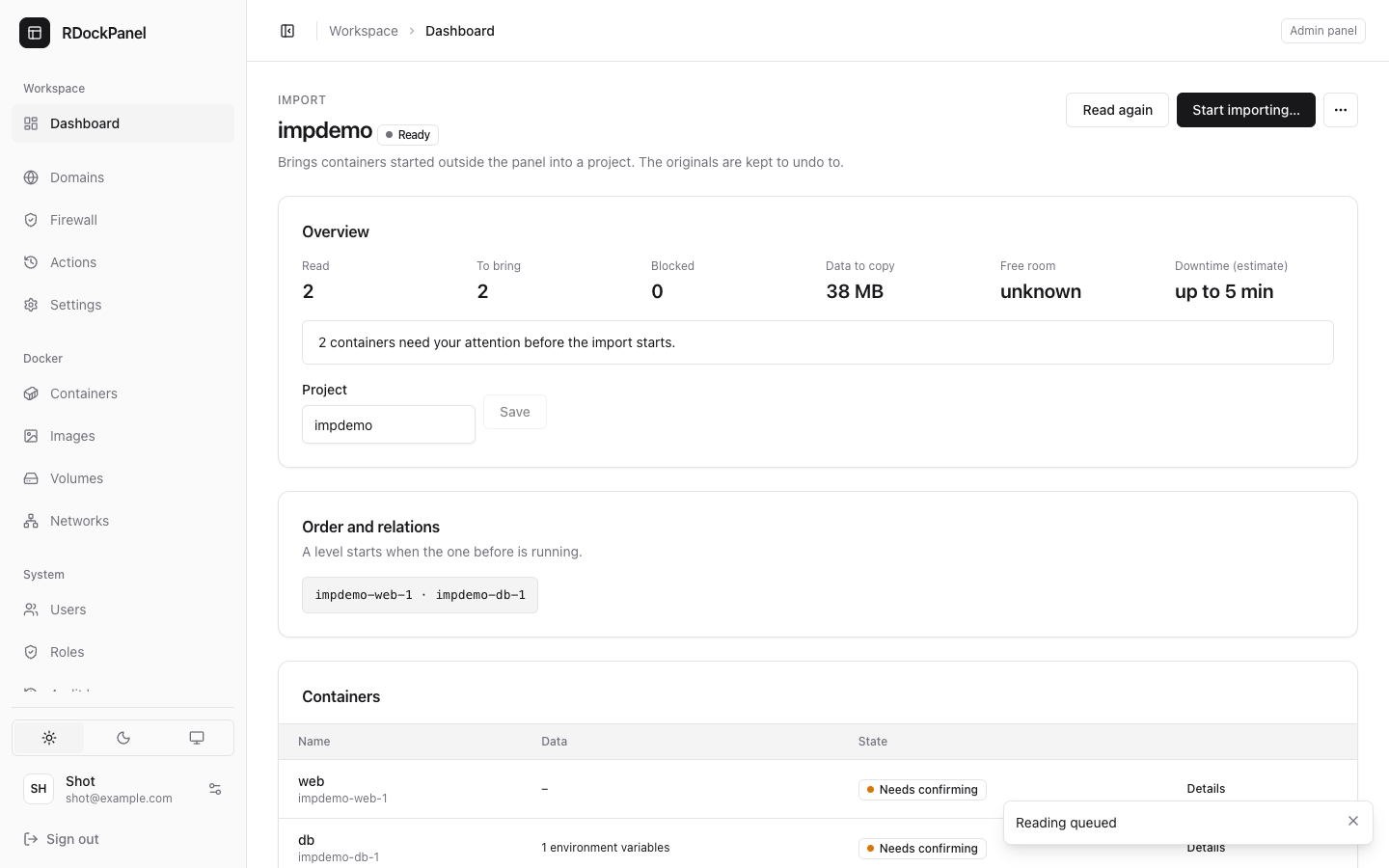
- Overview: how many containers come (To bring), how many are Blocked, the Data to copy, the Free room and the Downtime (estimate). Set the new Project name here.
- Order and relations: the levels in which services start (a level starts when the one before is running).
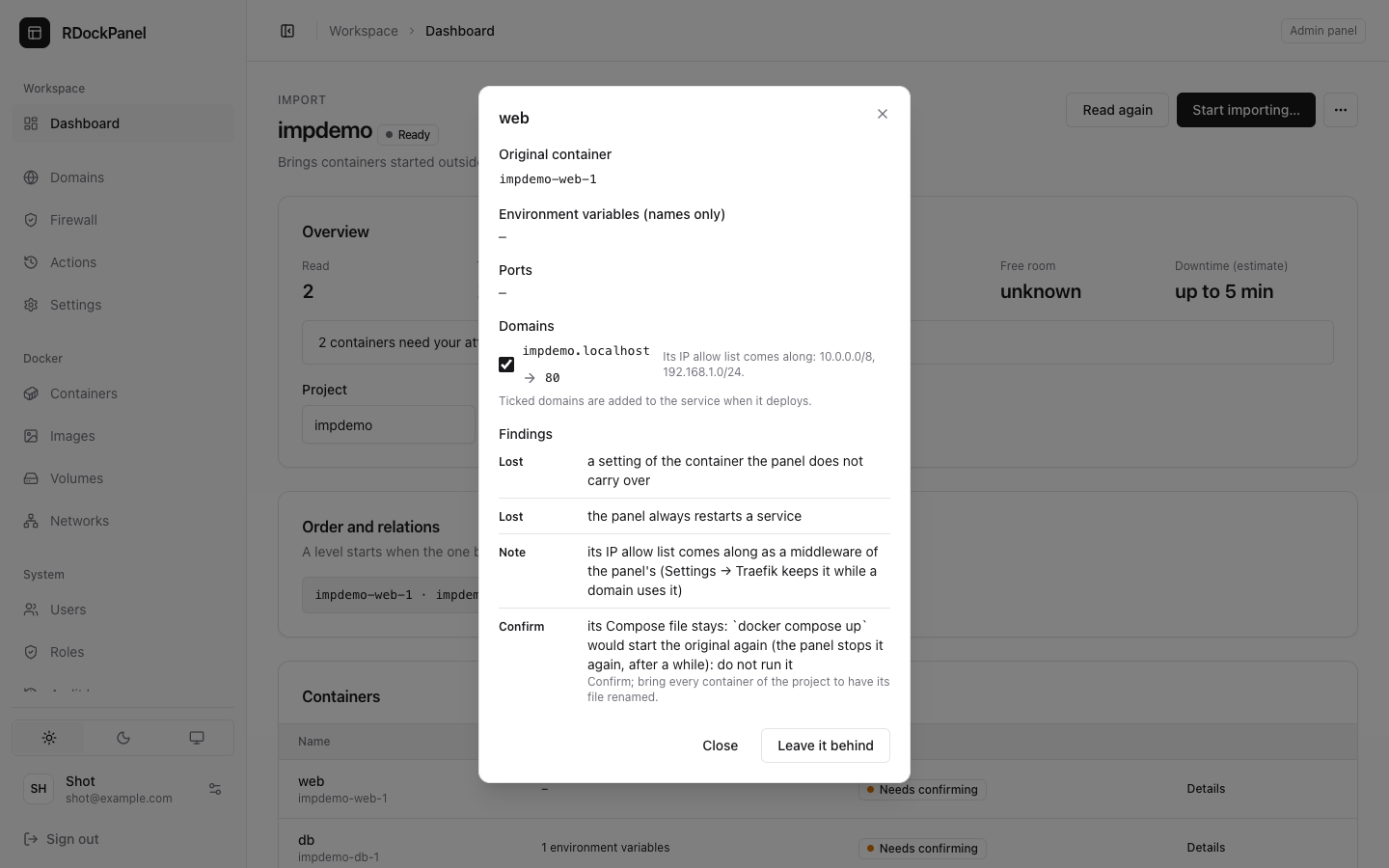
- Containers: each with its state. Its Details show the environment variable names (never values), ports, domains, volumes and findings, with buttons to Leave it behind or Bring it.
- What is lost or changes: what blocks, what you must confirm, what is lost.
Each finding has a level:
| Level | Means |
|---|---|
| Blocks | The container cannot come until the cause is gone. Fix it, then Read again. |
| Confirm | It can come, but something changes; starting means you accept it. The container reads Needs confirming. |
| Lost | A setting the panel does not carry over. |
| Note | Good to know, nothing to do. |
Choices in a container's details
- How it runs: an official PostgreSQL, MySQL, MariaDB or MongoDB container can come as a database service (connection details, dumps, backups; its image, settings and data kept as they are), or as an app. A
cloudflaredcontainer can become a tunnel of the panel (Settings → Cloudflare Tunnel) instead of a service. - Domains: Traefik labels and
VIRTUAL_HOSTbecome the service's domains, ticked. Untick one to leave it out. A domain behind Traefik basic auth brings its users along; one behind an IP allow list keeps it (as a middleware shown in Settings → Traefik). A domain behind any other protection is left out, so a protected site is never served open: protect the service in the panel, then add the domain. - Ports: published as they were. A port the panel keeps (80, 443…) or one on the loopback can be published on another: Publish {port} on.
- Health check: a password written in it moves to an environment variable the check reads. When the panel cannot cut it out, Drop the health check, or type a command that reads the secret from a variable (
"$NAME") and press Use this command.
3. Start
Press Start importing… and type the project's name to confirm. The panel then:
- stops the originals (their restart policy turned off first);
- checks there is room, and copies each named volume into a volume of the panel;
- links each folder of the server so it is used in place;
- renames the Compose file (to
<name>.rdockpanel-imported) when every container of that project comes; - deploys the services, level by level, and watches them for 60 seconds.
The Progress section shows each step. The import then reads Active: your services run in the panel.
4. Finish, or undo
- Undo (until you finish): removes the new services, puts the Compose file back, and starts the originals again. What the new services wrote stays in their volumes.
- Finish: removes the original containers (not their volumes). It can no longer be undone. If Docker refused a removal, press Finish again.
When a step fails after traffic could reach the new services, the import reads Needs you, with Retry the step, Continue, Accept as it is (when every service runs) and Undo. A failure before that undoes itself.
After the import
- Original volumes stay until you release them: Remove the original volume on the import's page (the copy stays).
- Folders used in place: Move all on the service's Storage tab copies them into volumes; Clean the old folder then deletes them (see Storage).
- While an import runs or waits for you, its services do not deploy, back up or restore, and the panel does not update.
- If an original runs again (
docker compose up, someone), the panel stops it again. The ⋯ menu has Stop the originals that run again and Stop watching the originals.
What is refused
Paused or dead containers, --rm, privileged containers, host network, a network mode shared with another container, an entrypoint different from the image's, a volume with a driver or options, two containers sharing one Docker volume, a mount of the Docker socket, /proc, /sys, /dev, /var/lib/docker or the panel's folder, and the panel's own containers.
Good to know
- Carried: the image (by digest), environment, named volumes, folders, health check, command, user, capabilities, sysctls, groups, CPU limit, read-only mounts, ports, domains.
- Not carried (said in the plan): shared memory, ulimits, tmpfs, devices, extra hosts, DNS, working directory, log driver, hostname, extra networks, the restart policy (the panel always restarts).
- A password on a command line moves to an environment variable (when the image runs the command it is given).
- A service with a folder in place, or an image only this server has, stays the administrators' and runs on this server.