Docker
The Docker pages show everything Docker runs on the server, not only the panel's services: containers, images, volumes and networks. The Actions page keeps a history of what was done.
Server metrics on the Dashboard
With the server.view permission, the Dashboard starts with live tiles for the server: CPU, Memory, Disk, Network in and Network out, each with its recent history. They update on their own while the page is open.
Containers
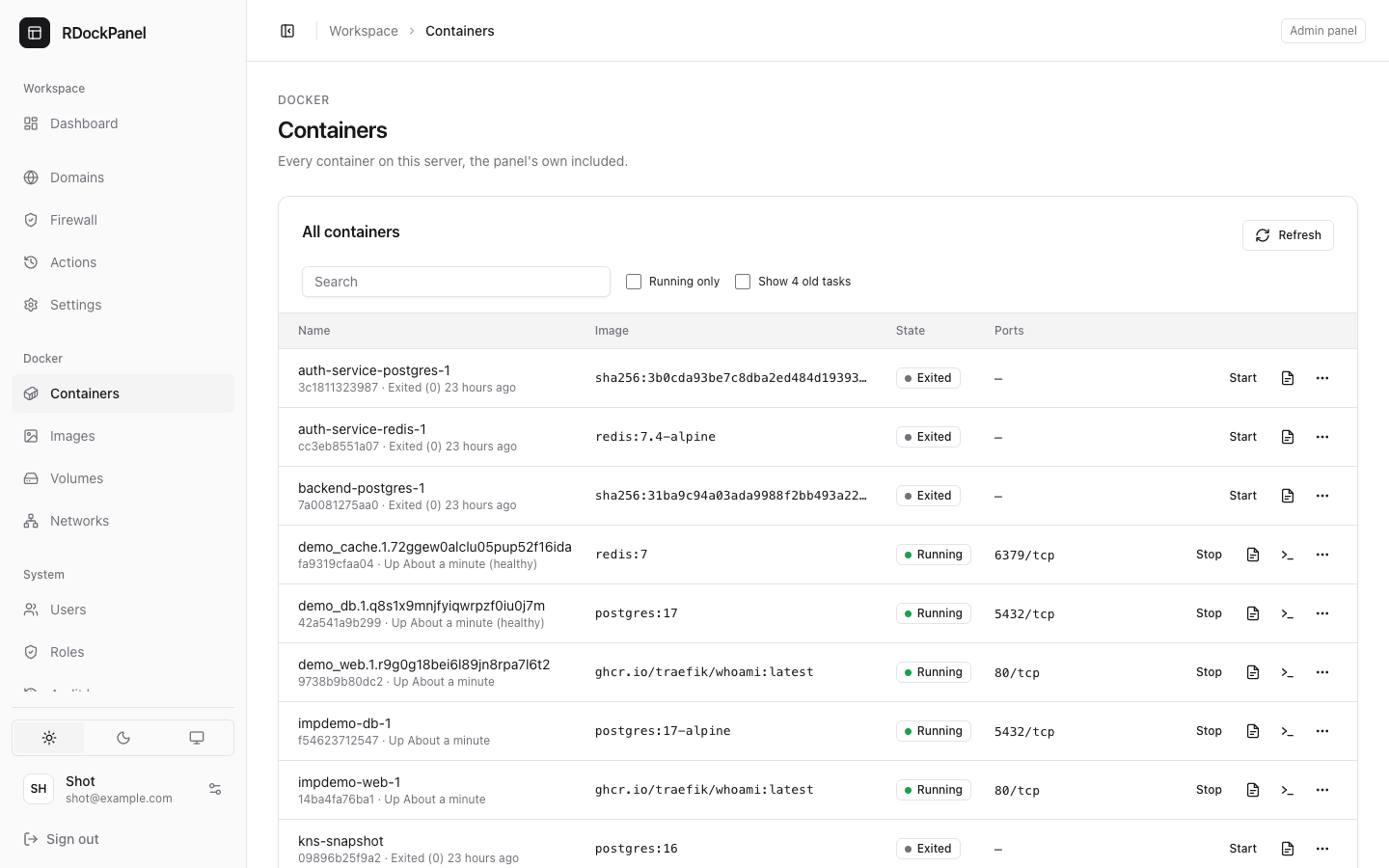
Containers lists every container on this server, the panel's own included (if you may see them, see below). The list refreshes every few seconds.
- Search by name or image; tick Running only to hide stopped ones.
- When a service is deployed again, Docker keeps the stopped containers of its old tasks. They are hidden; tick Show {n} old tasks to see them.
- Each row shows the name, the image, the state and the published ports. The buttons depend on the state: Stop, Start or Unpause, then the logs and terminal icons.
- The ⋯ menu has Restart, Pause, Inspect, Bring into the panel (administrators, see Import) and Remove….
Removing a container stops it first if it runs. If it is a task of a Swarm service, Swarm starts a new one: to stop a service for good, use its own page.
A container's page
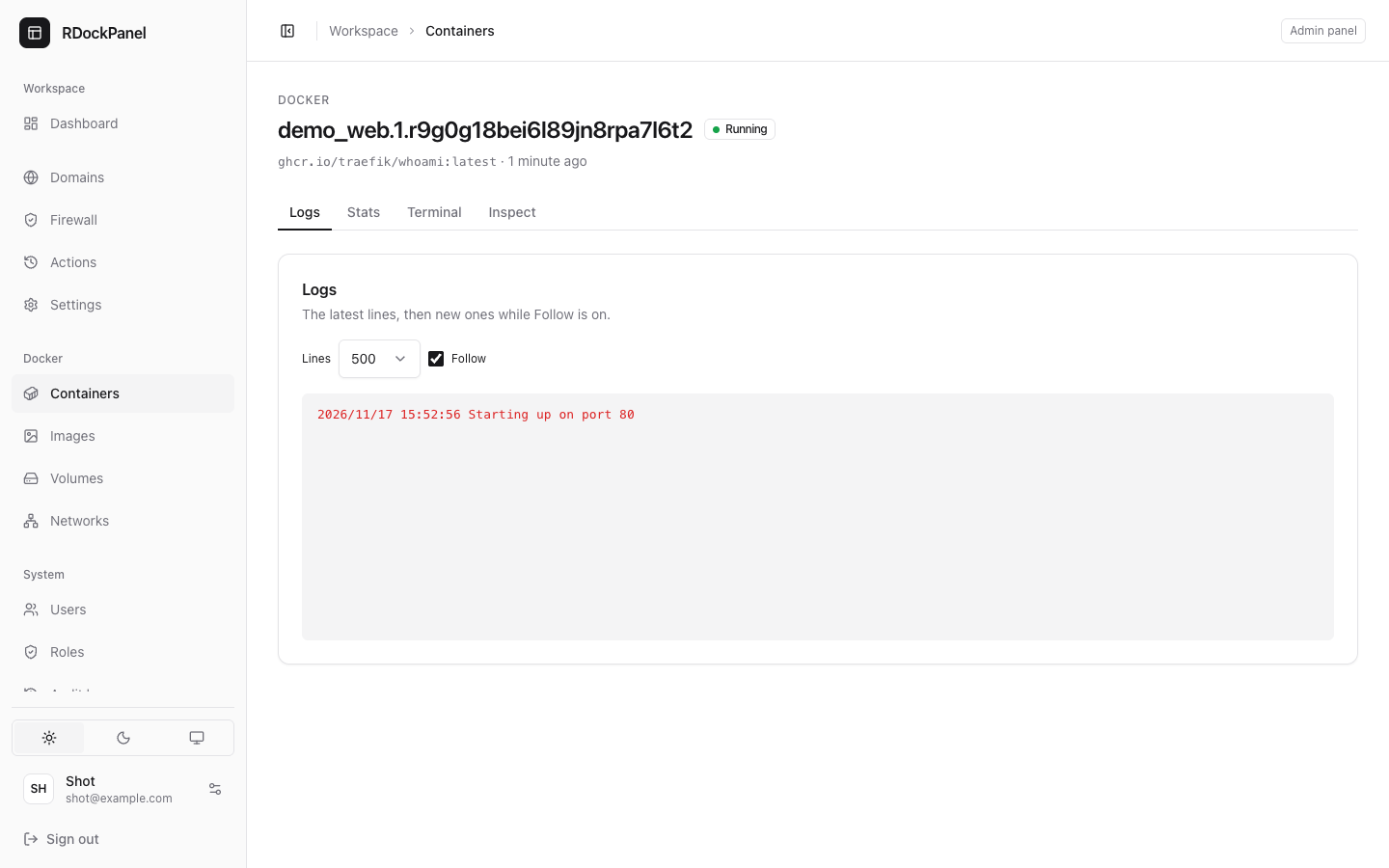
Click a container's name to open it. Its tabs:
| Tab | What it shows |
|---|---|
| Logs | The latest lines (you choose how many), then new ones while Follow is on. Lines written to stderr are highlighted. |
| Stats | CPU, memory, network and disk, live (running containers only). |
| Terminal | A shell in the container, in the browser (running containers only). It closes after 30 minutes without activity. |
| Inspect | Docker's full document of the container. |
Inspect hides secrets: environment values whose name looks secret (PASSWORD, TOKEN, KEY, SECRET, AUTH…), passwords in URLs (mysql://user:******@host), passwords on the command line, in the health check and in labels. It recognises known forms only, so keep secrets in environment variables.
Images
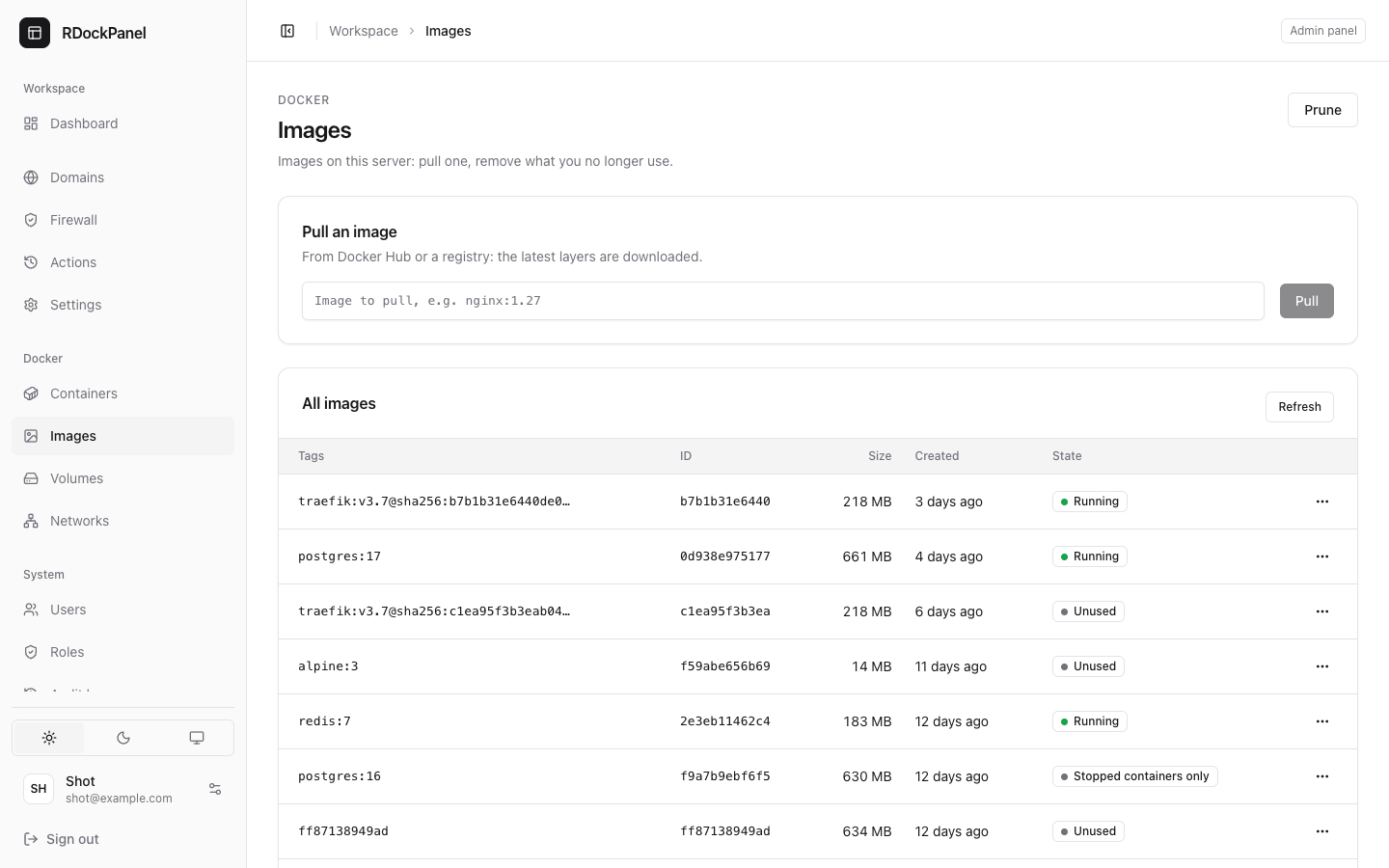
Images lists the images on the server with their tags, size and whether a container uses them (Running, Stopped containers only, Unused).
- Pull an image: type a name such as
traefik/whoami:latest(Docker Hub or any registry) and press Pull. The progress shows live. - Remove… removes one tag. An image a container still uses needs Force (also when in use).
- Prune removes stopped containers and dangling images (layers no tag points to). The panel's own are kept.
Volumes and networks
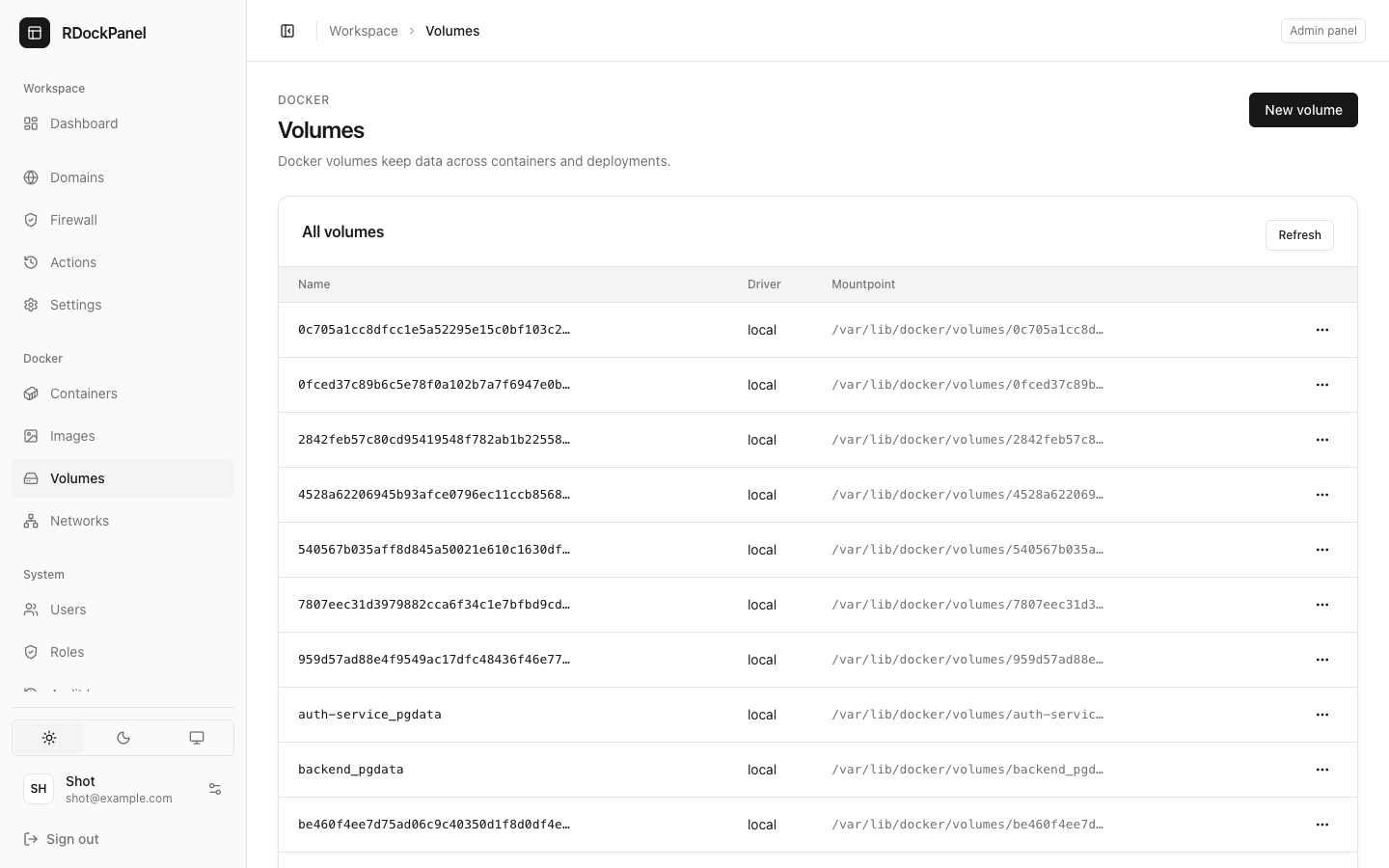
Volumes lists Docker volumes (name, driver, mount point). New volume creates one; Remove… deletes one, and its data is gone for good.
Networks lists Docker networks. Each project has its own network, with Traefik attached to it. New network creates a bridge network (this server) or an overlay network (the whole Swarm). Docker's own networks (bridge, host, none…) cannot be removed.
The panel's own objects
The panel, its database, Traefik and its Cloudflare Tunnel are Docker objects too, labelled rdockpanel.system=true. Without the system.manage permission:
- they are left out of every list;
- their logs, stats, terminal, inspect and every action are refused;
- an image one of them runs cannot be removed;
- prune always skips them, whoever runs it.
Actions: the history
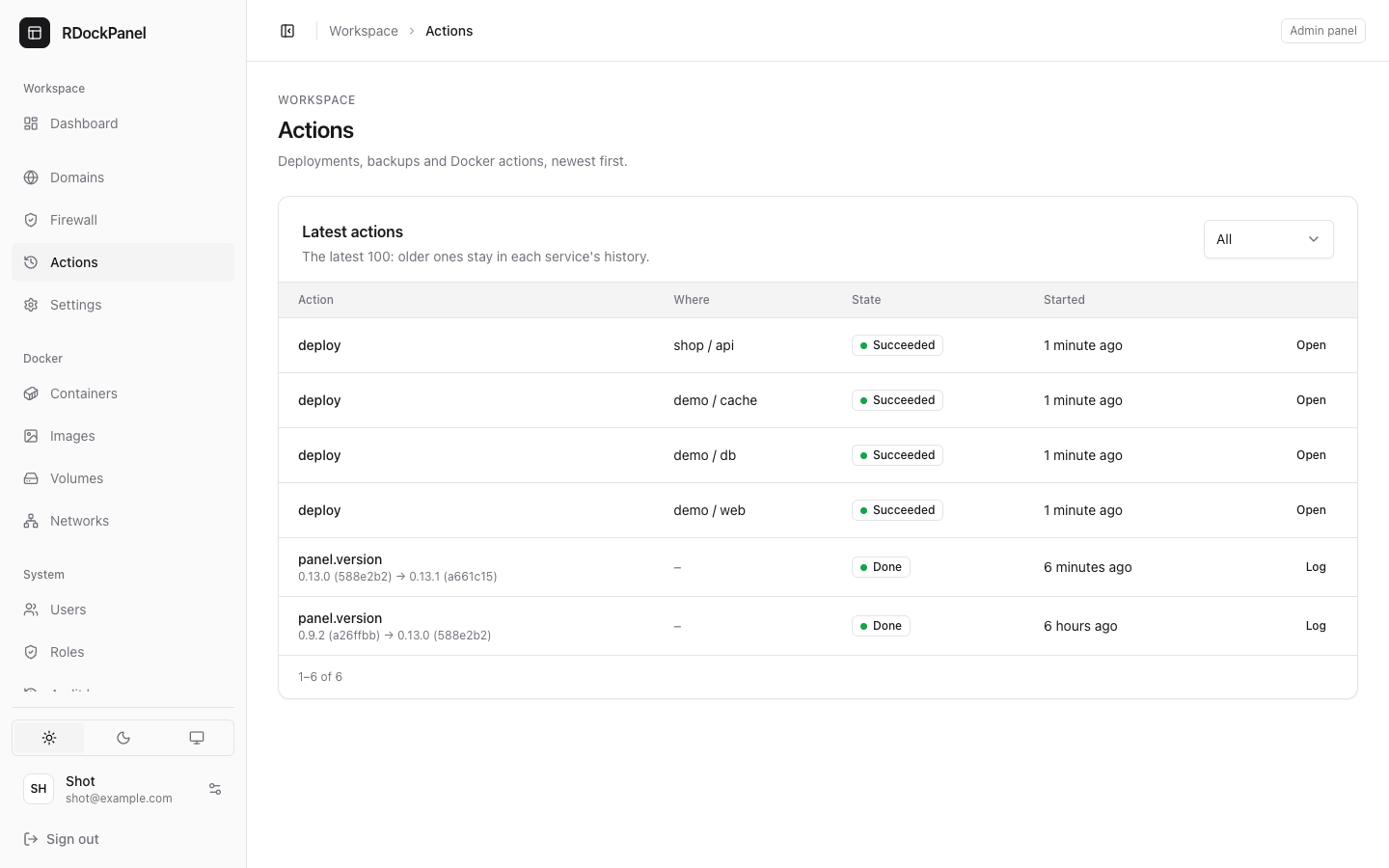
Actions (in the Workspace menu) lists what the panel did lately, newest first: deployments, backups and restores, and Docker operations (start, stop, remove, pull, prune, terminals…). Filter it by kind: All, Deployments, Backups, Docker.
- Open on a deployment or a backup goes to the service's tab.
- Log on a Docker action shows its log, and its error if it failed.
- The page keeps the latest 100; older deployments and backups stay in each service's history.
Every Docker operation is also written to the audit log (System → Audit log) with who did it.
Who may do what
| Permission | Allows |
|---|---|
server.view | the Dashboard's server metrics |
docker.view | the Containers, Images, Volumes and Networks pages; inspect and live stats |
docker.logs | container logs |
docker.manage | start, stop, restart, pause, remove containers; pull and remove images; prune; create and remove volumes and networks |
docker.exec | the container terminal |
system.manage | the panel's own objects; force-removing images in use; every user's actions |
The Actions page opens with projects.view_any or as a member of a project (apps.access). See Users and roles.
WARNING
Docker controls the whole server. docker.manage and docker.exec are close to root access (most images run their shell as root): give them only to people you trust with the server.
Good to know
- These pages act on Docker directly. To change an app, use its service page: a container you change here is replaced at the next deploy.
- A service's own logs and terminal are also on its page, with
services.logsandservices.exec, without access to the Docker pages. See Logs, terminal, scripts. - Settings → Panel has more clean-ups (stopped containers, unused images, build cache, unused volumes). See Settings.