Users and roles
Who can sign in to the panel, and what each person may see and do. Access is denied by default: a user sees only what their roles, or their projects, allow.
Three ways to give access
- Super admin: may do everything. The installer makes the first one (
--admin-email). - Roles (System → Roles): sets of permissions that apply everywhere, for every project.
- Project members: a user added to one project, as viewer, developer or admin of that project only. No role is needed.
A user's permissions add up: their roles' permissions, plus, inside a project, those of their project role.
Create a user
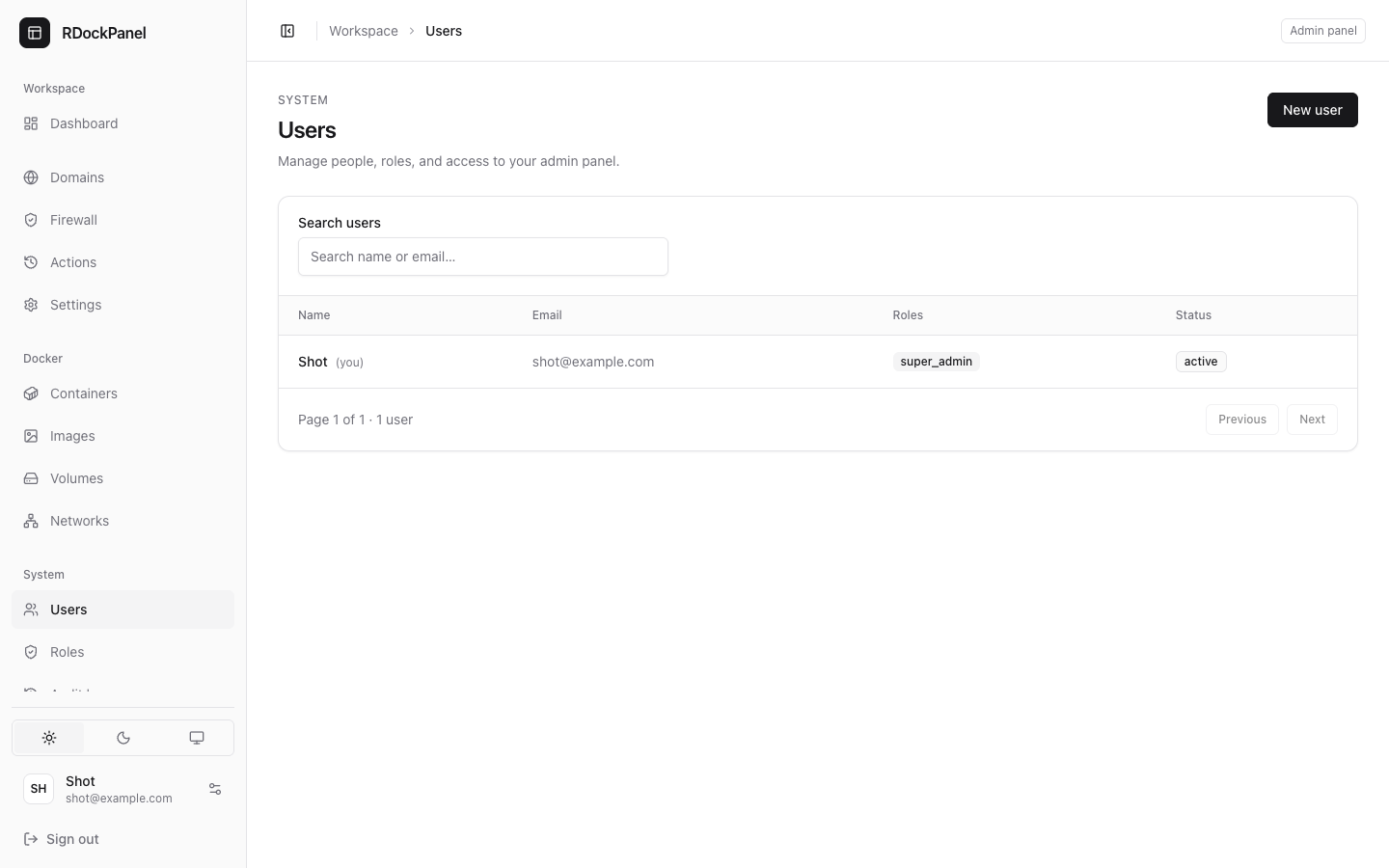
- Open System → Users and press New user.
- Fill in the name, the email and a password (at least 8 characters).
- Give them a role, or leave it empty and add them to projects instead (see below).
- Save, and send them the address of the panel and their password.
On the Users page you can also rename a user, disable or delete them, and change their roles. The last active super admin cannot be disabled or removed.
Roles
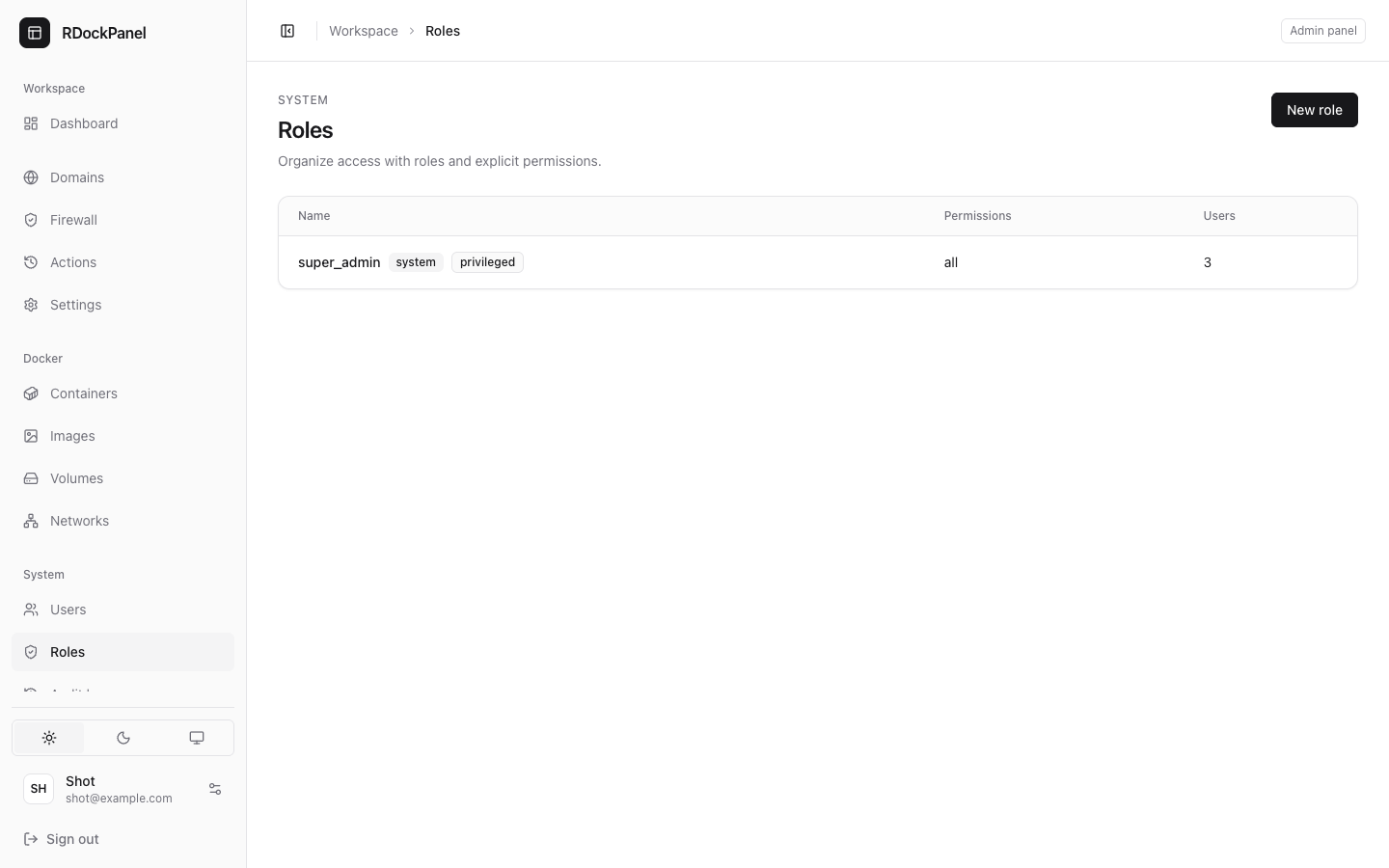
System → Roles lists the roles. A role's page shows its permissions in areas (Apps and deployments, Docker, Server, System), each with a label and a description, and a search box.
To start quickly, apply a preset, then adjust and save:
| Preset | Gives |
|---|---|
| Apps viewer | sees every project and its services |
| Apps developer | changes, deploys and runs every project's services |
| Apps administrator | also removes services, restores databases, chooses members |
| Monitor | sees the server and Docker, changes nothing (server.view, docker.view, docker.logs) |
A preset only fills the selection: nothing is granted until you save the role. You can only grant permissions you hold yourself.
The main permissions
Besides one set per kind of record (projects.*, services.*, service_domains.*…: view_any, view, create, update, delete), the panel has its own:
| Permission | Allows |
|---|---|
apps.access | the apps pages (Dashboard, Domains, Actions); given to project members |
services.deploy | deploy, start, stop, restart and roll back services |
services.destroy | remove a service from Swarm (its volumes are kept) |
services.secrets | read environment values in clear (each read is audited) |
services.logs, services.exec | a service's logs and terminal, from its page |
projects.members | add, change and remove a project's members |
backups.run, backups.restore | run a backup now; restore one (replaces the data) |
server.view | the Dashboard's server metrics |
docker.view, docker.logs | the Docker pages; container logs |
docker.manage, docker.exec | act on containers, images, volumes, networks; container terminals |
system.manage | Settings, Firewall, Traefik, certificates, imports, the panel's own containers, reboot |
The full list: docs/permissions.md.
system.manage is for administrators
system.manage lets someone change the panel and the server itself. It also covers what could reach the whole host: host directories, Compose services, added Linux capabilities, choosing a node. Give it only to people who would also get root on the server.
WARNING
docker.manage and docker.exec are close to root too: Docker controls the whole server, and most images run their shell as root.
Project members
A project's admin adds people to it from the project's page, with Members: type the user's email (the user must exist), choose a role, Add.
| Project role | May |
|---|---|
| viewer | see the project, its services, their deployments, backups and logs |
| developer | as viewer, and change, add, deploy and roll back its services; their domains, ports, mounts, redirects, scripts and backup schedules; read their environment; open their terminal; run a backup |
| admin | as developer, and destroy and delete services, restore a database (its own backups), rename the project, choose its members |
A member sees their projects only, everywhere: the Dashboard, Domains, Actions, the API. When the membership ends, their open logs and terminals close within seconds.
A project always keeps one admin. system.manage is never a project's to give: Compose and privileged services stay the panel administrators'.
Good to know
Permissions are checked on the server for every request. Live logs and terminals are checked again regularly (every 30 seconds at most), so a removed permission, a sign-out or a password change stops them within seconds.
Each user chooses their language (English or Vietnamese) and theme for themselves.
API tokens do what their user may, never more: see API.
Lost the only super admin's password? From the server, create another super admin:
shdocker exec "$(docker ps -q --filter label=com.docker.swarm.service.name=rdockpanel | head -n1)" \ /app/rdockpanel make:user --email admin2@example.com --name Admin2 --super-adminIt prints the new password.