Sources and templates
Where an app's image comes from, set on its Source tab: a Docker image, a Git repository built on the server, or a Dockerfile written in the panel. Templates create ready-made apps in one go.
Create a service
On a project, press Add service, choose App (Docker image), type a name and an image (such as ghcr.io/org/app:v2), then Create. You can change the source later on the Source tab.
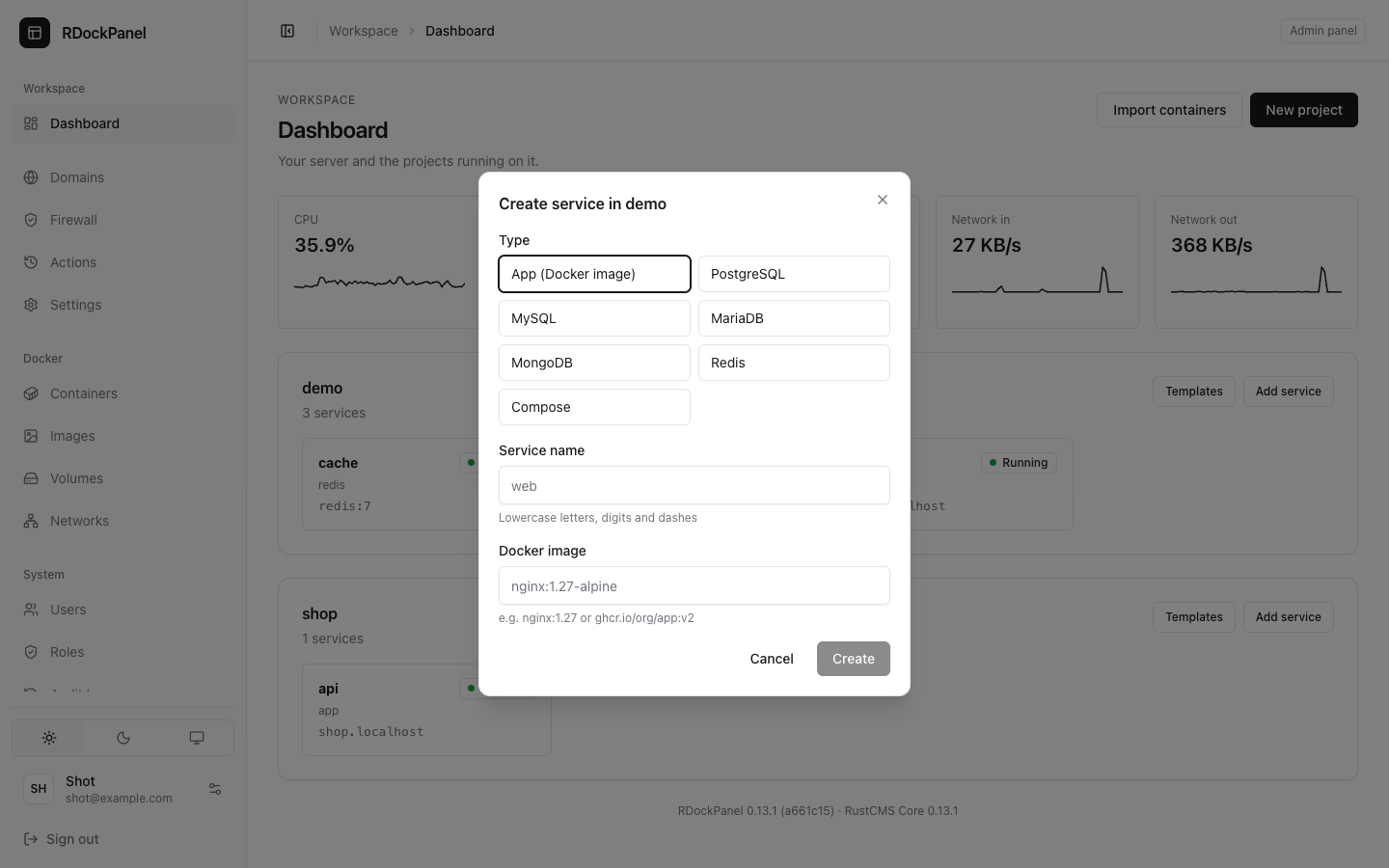
Docker image
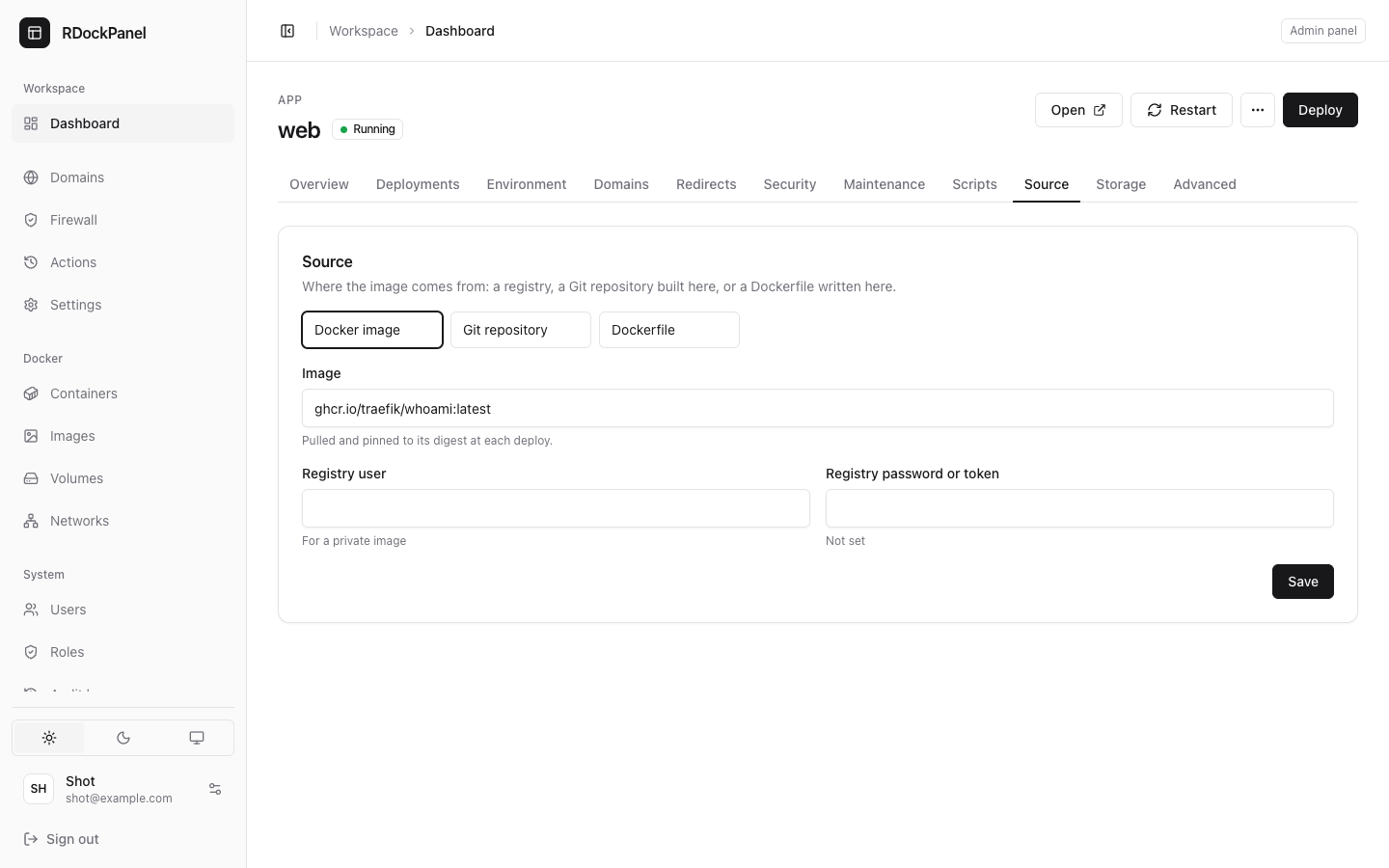
The image is pulled at each deployment and pinned to its exact digest, so a rollback runs the very same image.
For a private image, fill in Registry user and Registry password or token:
- the password is encrypted and never shown again (the field says it is set; leave it empty to keep it, or Remove password);
- the credentials belong to the registry named in the image (Docker Hub when the image names none).
Git repository
The panel clones the repository and builds it with its Dockerfile on this server. The build's output is the deployment's log.
- Choose Git repository on the Source tab.
- Fill in the Repository URL:
https://…for a public repository, orgit@github.com:org/app.gitwith a deploy key. - Set the Branch, tag or commit, the Build path (the folder of the repository to build,
/by default) and the Dockerfile path (Dockerfileby default). - Save, then Deploy.
Private repositories, two ways:
- Deploy key: press Generate a key, add the public key shown to the repository as a read-only deploy key, and use the ssh URL. New key replaces it (the old one stops working).
- GitHub token: an administrator adds a token in Settings → Git and gives it to projects. In the service, Clone with picks the token, then Choose a repository lists its repositories and branches.
A GitHub token can be fine-grained (read access to Contents and Metadata) or classic (repo). The developers of the projects it is given to can list and clone every repository it reaches.
Deploy from a push
- Auto deploy (GitHub): press Enable. Copy the URL and the secret shown (only once) into the repository: Settings → Webhooks → Add webhook, content type
application/json, thepushevent. Each push to the service's branch deploys it; pushes that arrive during a deployment are deployed once it ends. - Deployment trigger: Make a URL gives a URL that deploys the service when something sends it a
POST(a CI step). It is shown once; New URL replaces it.
Both appear for services built from Git (the trigger also for a Dockerfile).
Dockerfile written in the panel
Choose Dockerfile and write it in the editor. It is built on this server at each Deploy, like a repository.
Templates
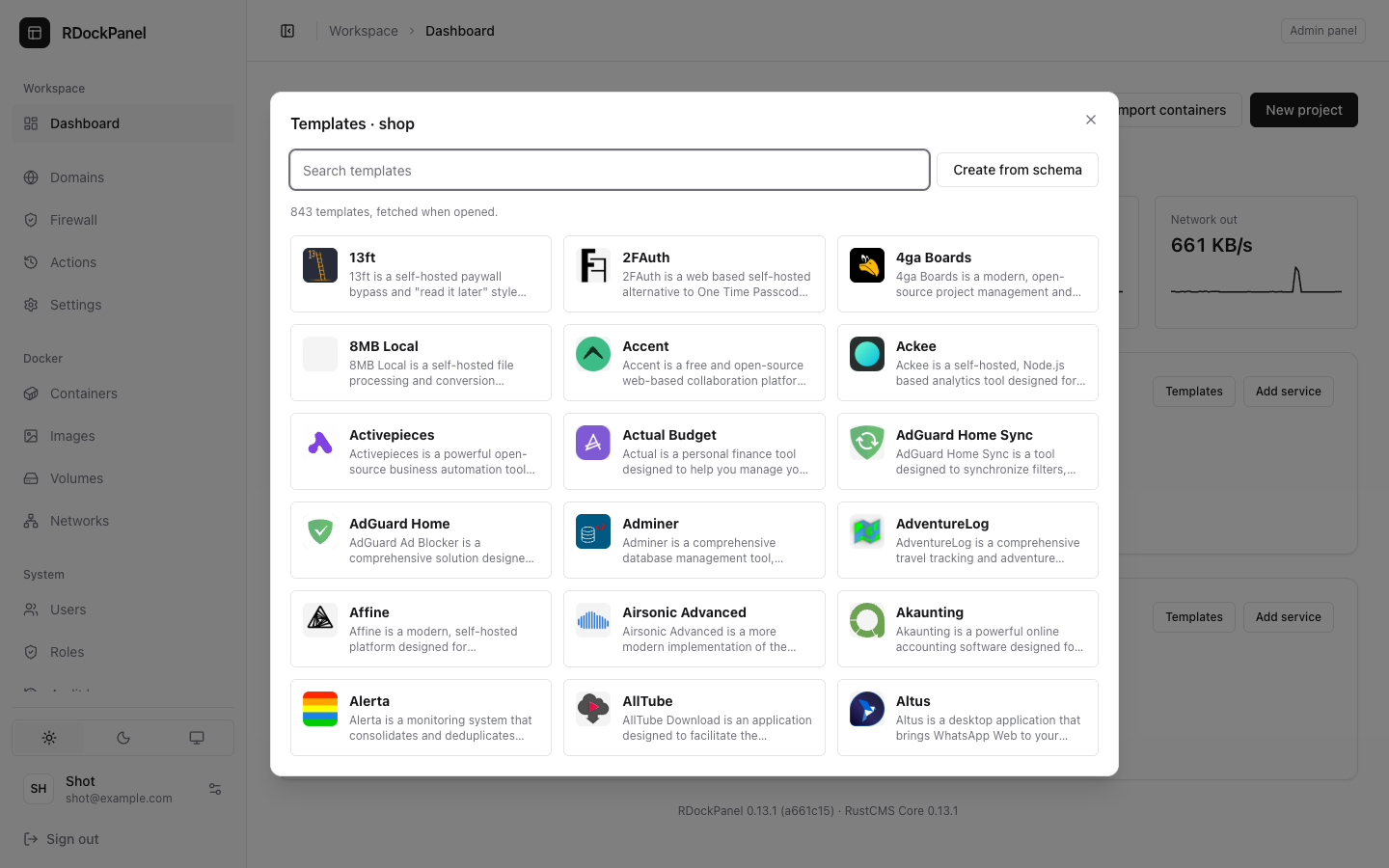
A template is a ready-made app with its databases and settings. The catalog has 800+ templates, fetched from a public, open-source catalog when you open it.
- On a project, press Templates.
- Search templates, then pick one.
- Fill in its form (defaults are already there).
- Leave Deploy now on to deploy at once (it is on when you may deploy), or turn it off to look first. Press Create.
The services are created together (databases first): all or none. When something in the template cannot be done here, it says so in a list of warnings instead of dropping it silently.
Create from schema takes a template's output pasted as JSON ({"services": [...]}), for a template you ran elsewhere.
Good to know
- Builds run on the panel's server; a repository is sent to Docker at up to 1 GB (without
.gitand what.dockerignorelists). - Start, Stop and Restart reuse the image already built. Deploy builds again; Force rebuild builds without the cache.
- Templates that use Compose are for administrators only (
system.manage). - The memory check runs before a template deploys (see Deploy).