Firewall
The Firewall page closes every port of the server to the internet, except SSH, the web (80 and 443) and the ports you open for the addresses you choose. It also shows what the server listens on.
The page is in the Workspace menu and needs the system.manage permission.
Linux only
On a panel installed on macOS, or run from source, the page says so and never touches the host. On a Mac, use macOS's own firewall (System Settings → Network → Firewall).
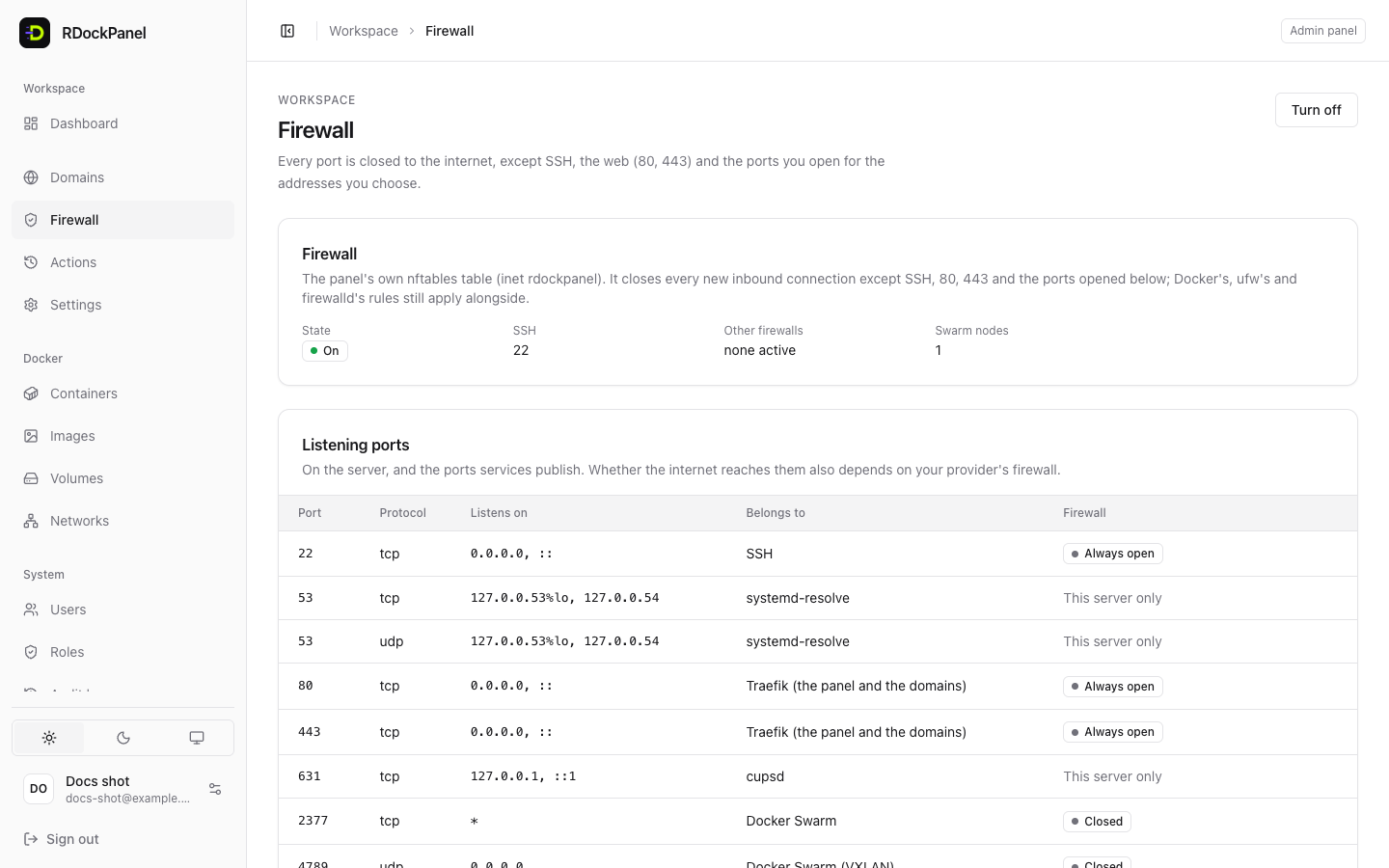
What stays open
When the firewall is on, every new inbound connection is closed, except:
- SSH: every port the server's SSH daemon listens on (TCP). It is always open, so you cannot lock yourself out of SSH.
- The web: TCP 80 and 443. Traefik serves the panel and every domain there.
- The openings you add: a port or a range, TCP or UDP, for their sources only.
Connections already open continue until they close; the rules apply to new ones.
Before you turn it on
The page refuses to turn the firewall on, and says why, when the server does not fit:
nftor systemd is missing;- the Swarm has more than one node;
- a macvlan or ipvlan Docker network exists;
nftables.serviceis enabled (its default configuration clears every table at boot);- a Docker bridge carries the default route;
- the panel has no domain and no Cloudflare Tunnel: port 3000, where the panel answers without a domain, would close. Give the panel a domain first (see Settings → Panel).
Look at Listening ports first: it lists what the server listens on, the program it belongs to, and whether it stays open. Anything you still need from outside (a VPN, a database port for your office…) must be opened before you turn the firewall on.
Open a port
- Press Open a port, or Open for… on a row of Listening ports.
- Port or range:
5432, or8000-8100. Choose the Protocol (TCP or UDP). - Applies to:
- This server (a program outside Docker), for example a VPN or a program installed on the host;
- A port a service publishes, for a port published by one of your services.
- Open for: Only the addresses below (the usual choice), then the IPv4 sources and IPv6 sources, for example
203.0.113.0/24. An empty family lets none of it in. Anywhere (everyone on the internet) is an explicit choice, shown in red. - Add a Note (for example "Through the VPN") and save.
- Press Apply… to use the new rules (see below).
SSH, 80 and 443 are always open: nothing to add for them.
Published ports and Docker
Normally, a port a service publishes skips the host's firewall rules: Docker opens it to everyone. With the RDockPanel firewall on, a published port is closed like any other until you open it here with A port a service publishes. Domains do not need this: they go through Traefik on 80 and 443.
Block an address
Block an address stops an address or a network (198.51.100.7, 2001:db8::/32) from reaching anything but SSH. That includes every site on 80 and 443, the panel's too, since the server cannot tell one domain from another. Visitors through Cloudflare's proxy or the Tunnel are not affected: the server sees Cloudflare, not them. Block those on the websites (the WAF) instead.
- The same dialog and the same list as the WAF page's: tick On the whole server (Firewall), On the websites (WAF) or both. See Blocking an address.
- A block is applied at once, without the "try, then keep" step below: it cannot lock you out (SSH stays open to it, and the address you are using is refused). Openings saved but not applied stay drafts.
- For a day, a week, thirty days, or until removed; ended blocks are removed within five minutes and the firewall applied again.
- Cloudflare's ranges are refused: blocking them would cut every visitor coming through Cloudflare.
Apply safely: try, then keep
Every change is first tried, then kept by you:
- Press Turn on… (the first time) or Apply…. The dialog lists the ports that will close to the internet. Confirm.
- The page shows Trying the new rules. with a countdown. Check, from a new connection, that you still reach the panel (a private browser window) and SSH (a new SSH session).
- All good: press Keep these rules.
- Something is wrong: press Go back now, or do nothing. After two minutes the server goes back to the previous rules by itself, even if the panel cannot reach it.
The rules are also loaded at boot, before Docker starts, so no published port is ever exposed unfiltered during a reboot. If a change is made outside the panel (for example nft flush ruleset), the panel puts its rules back within two minutes and records it as an action.
Turn it off
Turn off removes the panel's rules entirely: every port is open again as Docker publishes it, and Docker no longer waits for the firewall at boot.
If you are locked out
Right after Apply: wait two minutes, the server goes back to the previous rules.
SSH always stays open. From an SSH session, as root, turn the firewall off without the panel:
shsh /var/lib/rdockpanel/firewall/fw.sh disableIf the firewall's files were deleted and Docker no longer starts, remove the link between Docker and the firewall:
shrm /etc/systemd/system/docker.service.d/rdockpanel-firewall.conf && systemctl daemon-reload
Good to know
- It does not replace your provider's firewall or security groups. Listening ports says what the server listens on, not what the internet can reach.
- The firewall uses its own nftables table (
inet rdockpanel). ufw, firewalld and Docker's own rules still apply alongside it: the page lists the other firewalls it finds. - Turn the firewall off before uninstalling the panel (see Install).
- Technical details: docs/firewall.md.