Settings
Settings (in the Workspace menu) holds the panel itself, its proxy and certificates, backup storage, notifications and your API tokens. Each tab shows only to users with its permission:
| Tabs | Permission |
|---|---|
| Panel, Version, Traefik, Certificates, Cloudflare Tunnel, Branding, Maintenance page, Git | system.manage |
| Backups | storage_providers.view_any |
| Notifications | notification_channels.view_any |
| API tokens | none: every user has their own |
Panel
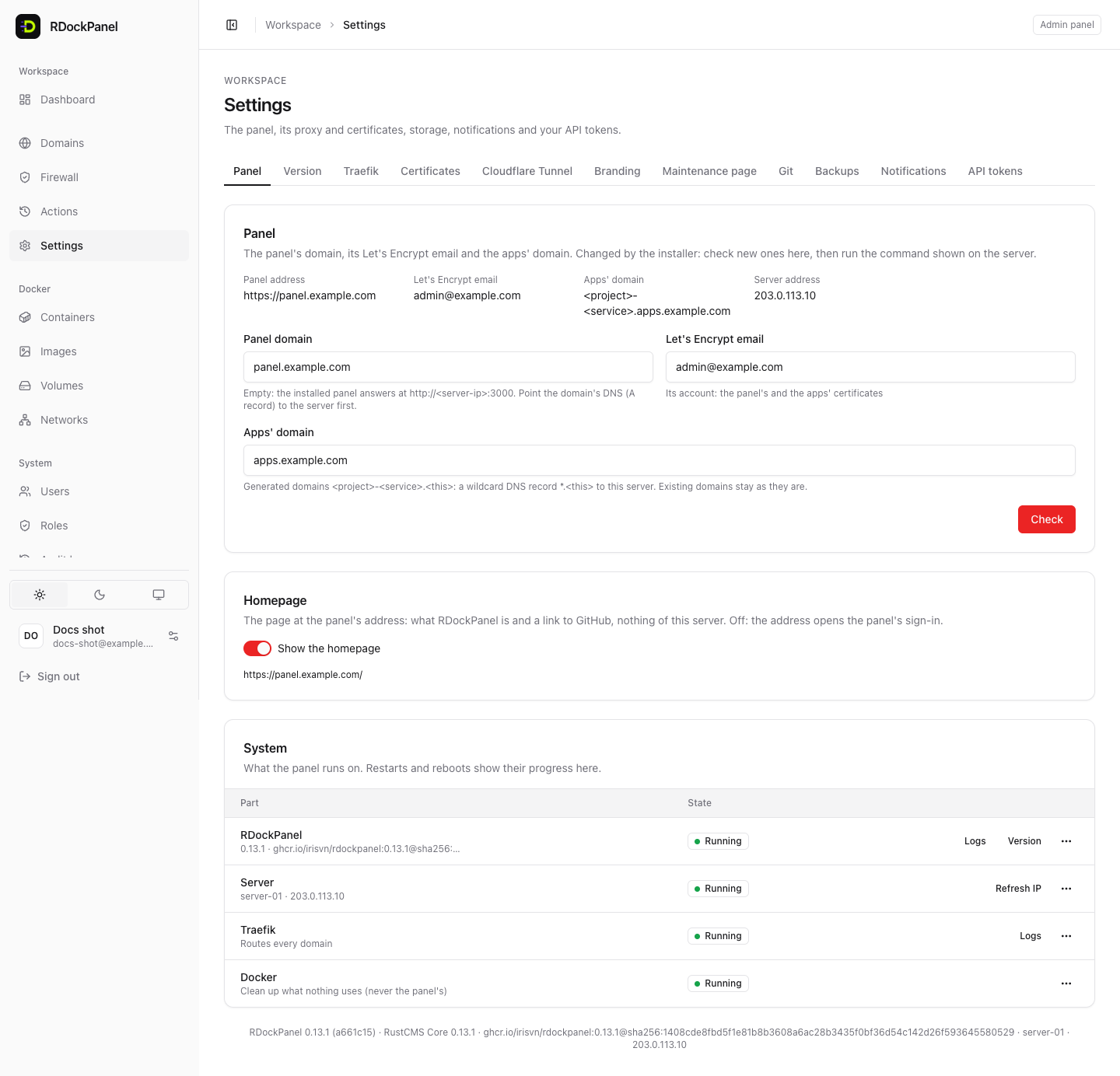
Panel address shows the panel's domain, its Let's Encrypt email and the apps' domain:
- Panel domain: where the panel answers on HTTPS. Empty: it answers at
http://<server-ip>:3000. Point the domain's DNS (an A record) to the server first. - Let's Encrypt email: the account used for the panel's and the apps' certificates.
- Apps' domain: generated domains are
<project>-<service>.<this domain>; it needs a wildcard DNS record*.<this domain>to the server. Existing domains stay as they are.
These are changed by the installer. Fill them in, press Check (DNS, names already in use), then copy the Installer command and run it on the server as root. The panel restarts at its new address; the installer keeps everything else.
Homepage: Show the homepage puts a page about RDockPanel at the panel's address (/), with nothing of this server on it. Off: the address opens the sign-in.
The System section below lists what the panel runs on, with their actions:
- RDockPanel: its version, its logs, Restart….
- Server: the hostname and public address, Refresh IP, Reboot… (type the server's hostname to confirm; every service stops until the server is back).
- Traefik: its logs and Restart… (domains stop answering for a few seconds).
- Docker: clean up what nothing uses, never the panel's own: Prune stopped containers, Prune unused images, Prune build cache, Prune unused volumes (the data of the panel's services and Compose projects is always kept).
Version
What the panel runs (version, image, and what it runs with: Core, Traefik, MySQL or SQLite, Docker, the OS) and whether a newer release is out. The panel checks every 6 hours (or Check now) and says so here and on the Dashboard, with the release notes.
The panel never updates by itself: an administrator presses Update. New deployments and backups wait, the panel's database is backed up, then Swarm replaces the panel (it is unavailable for about a minute; your services keep running). If the new version does not start, Swarm goes back to the old one. History lists version changes and panel restarts, and Remove old versions… frees the disk. See Update and back up the panel.
Traefik
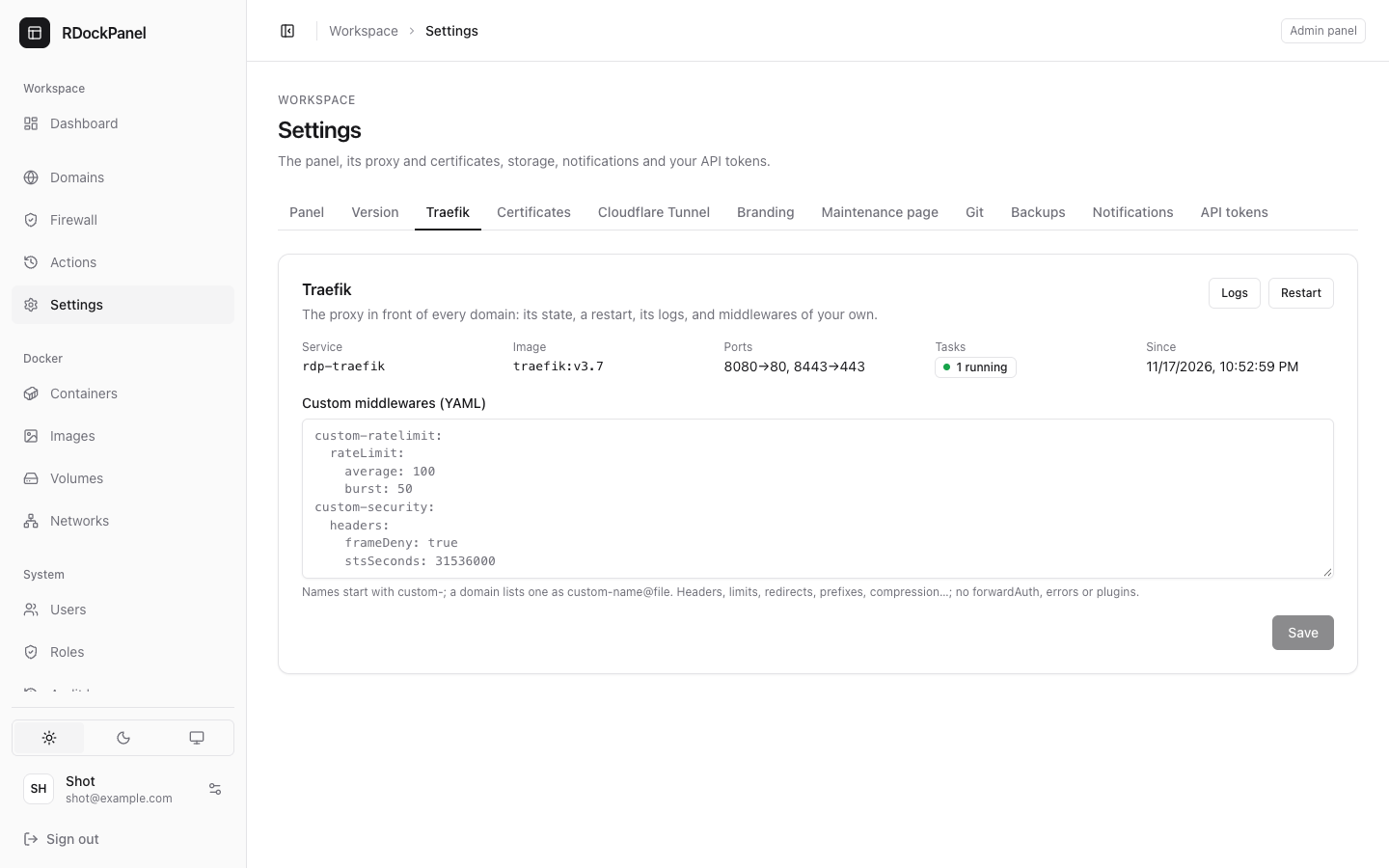
Traefik is the proxy in front of every domain. This tab shows its state (service, image, tasks, ports), Restart and its live Logs.
Custom middlewares (YAML) adds Traefik middlewares of your own: headers, rate limits, redirects, prefixes, compression… Their names start with custom-, and a domain uses one as custom-<name>@file. forwardAuth, errors and plugins are not allowed.
Imported IP allow lists shows the allow lists that importing a container made for its domains; each is removed once no domain uses it.
Certificates
- Certificate resolvers: how Traefik gets certificates. Add Let's Encrypt over HTTP (the domain must reach this server on port 80) or over DNS (wildcards too) with a token of your DNS provider: Cloudflare, DigitalOcean, Hetzner, Vultr or Linode. The token is kept sealed. Press Apply for Traefik to use them (it restarts, a few seconds without routing). A domain picks a resolver in its dialog, else the panel's default.
- Uploaded certificates: a certificate of your own (a CA's, or a wildcard): the certificate with its intermediates (
fullchain.pem) and its private key (privkey.pem, not encrypted). It is checked, its key sealed, and served for the names it covers. Notification channels hear 14, 7 and 1 days before it expires.
See Domains and HTTPS.
Cloudflare Tunnel
Reach your domains through Cloudflare without opening ports 80 and 443: add a tunnel with its token, turn it on or off, see its hostnames. See Cloudflare Tunnel.
Branding
The panel's name and primary color, its logos (light and dark) and favicon (PNG, WebP or ICO, at most 512 KB each, no SVG). They show on every page and on the sign-in page, without a restart (reload the page to see them). Left empty: RDockPanel's own.
Maintenance page
The page shown by every service in maintenance that uses the default page: empty for the built-in page, or your own HTML with a Preview. Default contact (an email or an https link) is shown for services that name none. A service can also have its own page: see Redirects, security, maintenance.
Git
GitHub tokens that clone private repositories. Add GitHub token: a fine-grained token with read access to Contents and Metadata (or a classic one with repo), and the projects that may use it. GitHub checks it first; it is never shown again. Developers of those projects can list and clone every repository the token reaches. See Sources and templates.
Backups
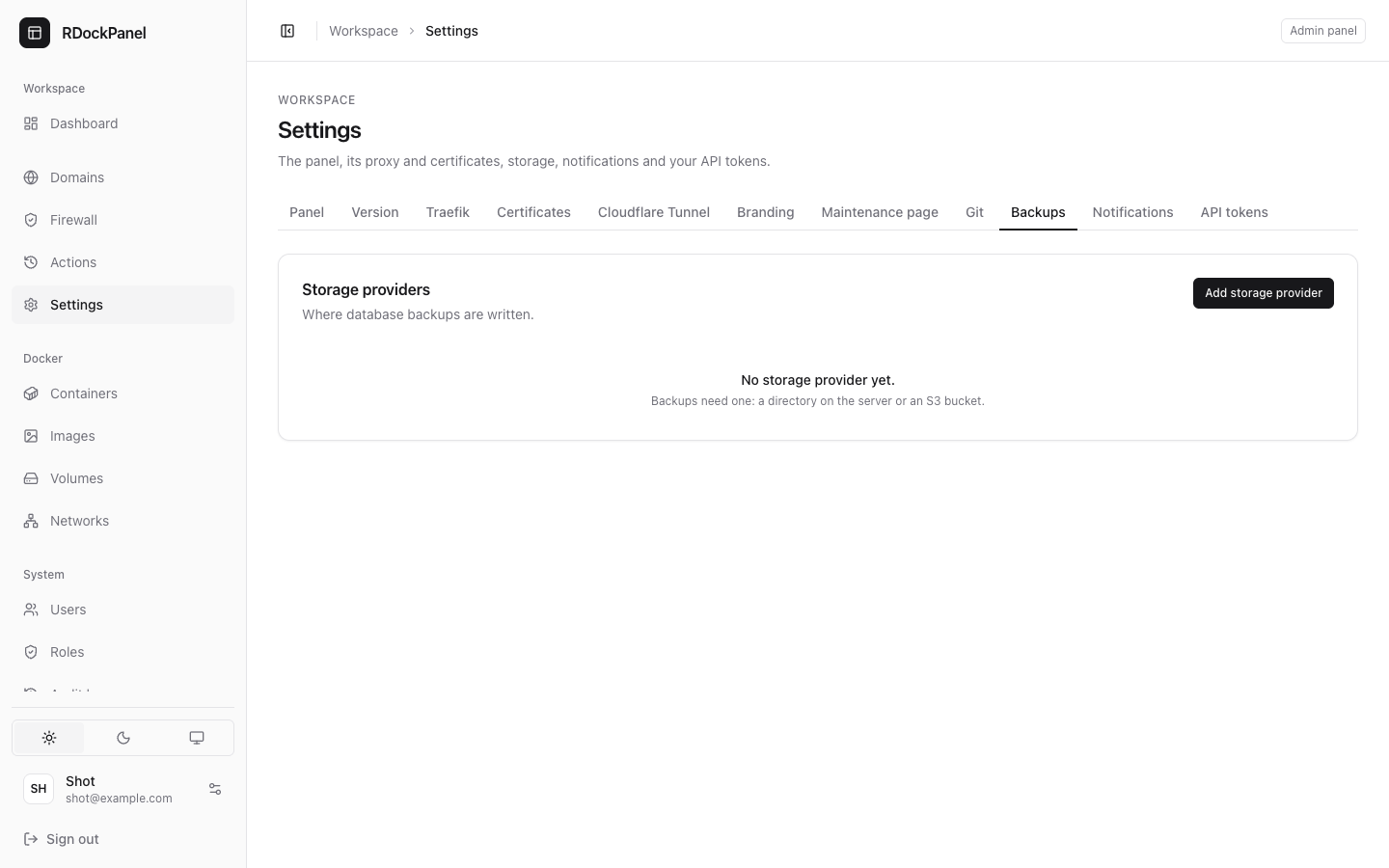
Storage providers: where database and volume backups are written.
- Local directory: an absolute directory of the server. In the installed panel, keep it under
/var/lib/rdockpanel. - S3-compatible (AWS, Cloudflare R2, MinIO…): endpoint, region, bucket, access key and secret key. Tick Path-style URLs for MinIO and most S3-compatible services.
Test writes, lists and deletes a small file there. A provider a backup uses cannot be deleted; deleting one leaves its files where they are. See Databases and backups.
Notifications
Channels that hear what happens: Discord, Slack, Telegram, Email (SMTP) or a Webhook. Add channel, then tick its events:
- deployments (and every failure), backups and restores, disk usage over a threshold;
- a running service that fails and comes back, Traefik down and back;
- an uploaded certificate about to expire, a newer RDockPanel;
- off by default: Docker prunes, a sign-in from a new address.
Send test checks a channel.
API tokens
Your own tokens for the API and the rdp command line. New token: a name, its scopes (read, deploy, secrets…) and an expiry in days (at most 365). Copy it at once: it is not shown again. A token does what you may, never beyond its scopes. Revoke… stops it.
Good to know
- Changes to Traefik (resolvers, restarts) and panel restarts cut domains or the panel for a few seconds: do them at a quiet moment.
- Secrets typed in these tabs (secret keys, tokens, passwords) are kept encrypted and never shown again. When editing, leave such a field empty to keep the saved value.